

Customizing Your Invoice Template: Adding PayNow QR Codes (The SQL Account Guide)
Stop Waiting for "I’ll Transfer Later"
We all know the drill. You send an invoice on Monday. The customer opens it, sees the amount, looks for your bank account number at the bottom, sighs because they have to type 14 digits manually, and closes the email. "I’ll do it later," they think. Three weeks later, you are still chasing them.
In Singapore’s fast-paced business world, friction kills cash flow. The solution? PayNow. By placing your Corporate PayNow QR code right on the invoice, you turn a 5-minute chore into a 5-second scan.
At Apscom Solutions, we help clients use SQL Account to automate their way to faster payments. Here is how to add that magic square to your invoices using the SQL Report Designer.
Step 1: Get Your QR Image
First, you need the actual image file of your QR code.
Log in to your corporate banking portal (DBS Ideal, OCBC Velocity, UOB Infinity).
Download your SGQR / PayNow Corporate QR.
Save it as a JPG or PNG file on your desktop.
Pro Tip: Crop the image! Remove the extra white space around the code so it fits neatly into your template without blocking other text.
Step 2: Enter the "Design Mode"
Open SQL Account.
Go to Sales > Invoice.
Open any existing invoice (don't worry, we are just using it to get to the designer).
Click the Preview button.
Select your standard invoice format (e.g., "Invoice with GST").
You will see the Blue Colour Forms Name at the bottom just click it.
Step 3: The Report Designer (Don't Panic!)
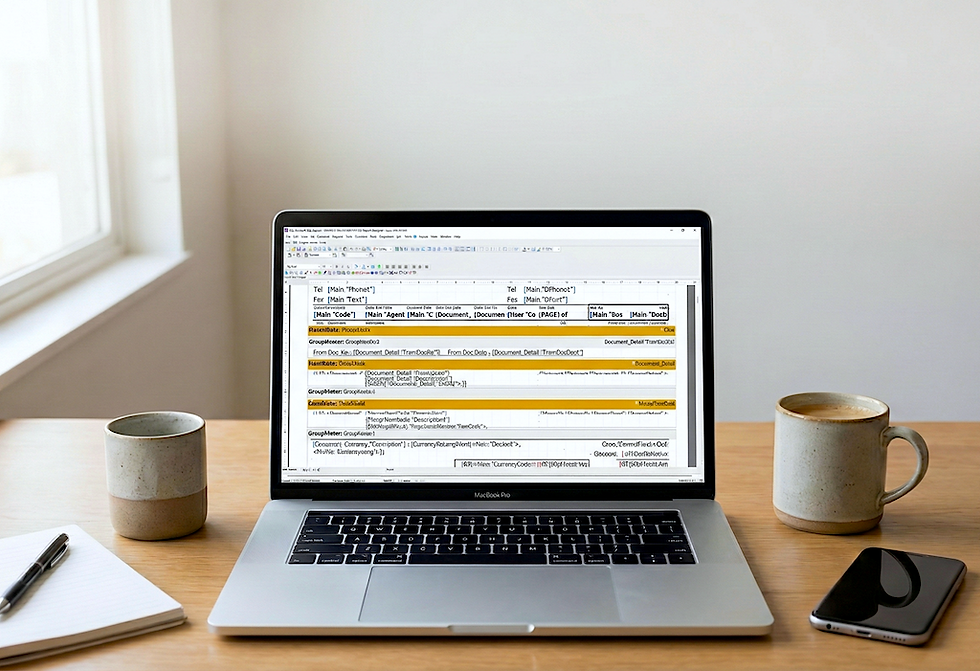
You are now in the Report Designer. It looks like a complex grid, but you only need one tool today.
Look at the Tool Box on the left or top side.
Find the "Picture" Object (it usually looks like a small landscape icon).
Click and Drag that icon onto the area of the invoice where you want the QR code to appear.
Recommendation: The Summary Band (at the bottom near the "Total") or the Page Header (top right) are the best spots.
Step 4: Load Your QR Code
Once you drag the box onto the report, a window should pop up (or double-click the box you just made).
Click Load or the folder icon.
Browse and select the PayNow QR JPG you saved in Step 1.
Click OK.
Resize it: Drag the corners of the image box until it’s roughly 2.5cm x 2.5cm.
Step 5: Add the "Scan to Pay" Label
A silent QR code is confusing. Give them instructions.
Find the "Text" Object (the letter 'A' icon) in the Tool Box.
Drag it next to or below your QR code.
Type: "Scan & Pay via PayNow" in bold.
(Optional) Add your UEN below it as a backup for desktop users.
Step 6: Save As New Report
Crucial Step: Do not overwrite your original report until you are sure this works!
Go to File > Save As.
Name it clearly: "Invoice_PayNow_Format".
Close the designer.
Step 7: Test It!
Go back to your Invoice list.
Preview an invoice and select your new "Invoice_PayNow_Format".
Real Test: Take out your phone, open your banking app, and scan the screen. Does it detect your company name and UEN? If yes, you are live!
The Result: Zero Excuses for Late Payment
Now, payment is as easy as buying bubble tea. Your customers scan, confirm, and you get the notification.
Is the Report Designer too scary? SQL Account’s designer is powerful, but it can be tricky if you accidentally delete a formula field. If you’d rather not risk messing up your layout,
contact the SQL Account Team. We can remotely log in, professionally format your QR code, and align everything perfectly for a small service fee.


Comments